
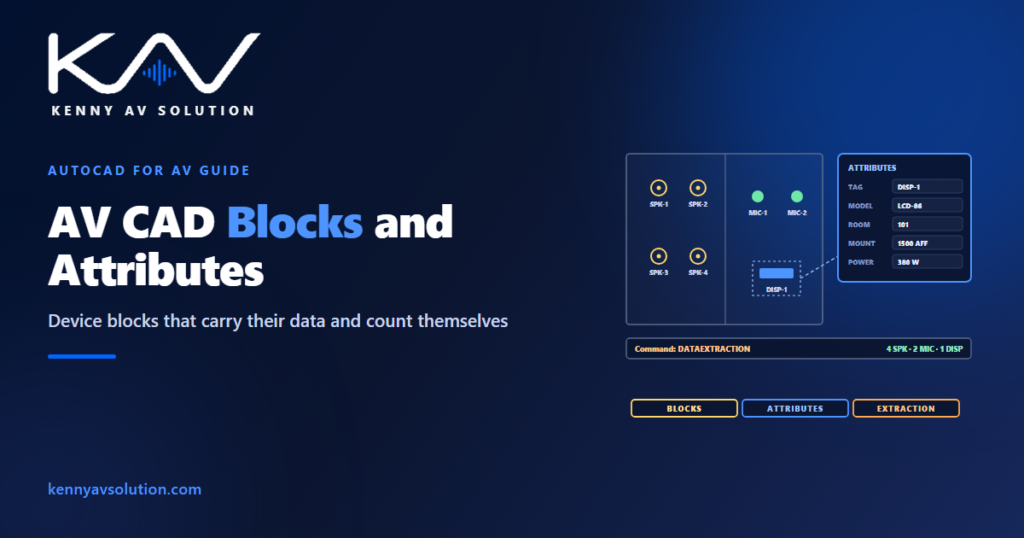
AV CAD blocks are usually treated as symbols: a shape that looks like a display or a loudspeaker, dropped on the plan, with a text tag typed next to it. That works until the device count, the equipment schedule and the rack power total have to agree with the plans — and someone counts by hand, misses three ceiling loudspeakers on a crowded sheet, and the schedule is wrong. In AutoCAD, a block can carry its own data. When every device is a block with attributes, the drawing can count itself.
The commands below are AutoCAD’s; the principles apply to any CAD platform that supports blocks with data. Follow the client’s CAD standard where one is specified.
A symbol is not enough
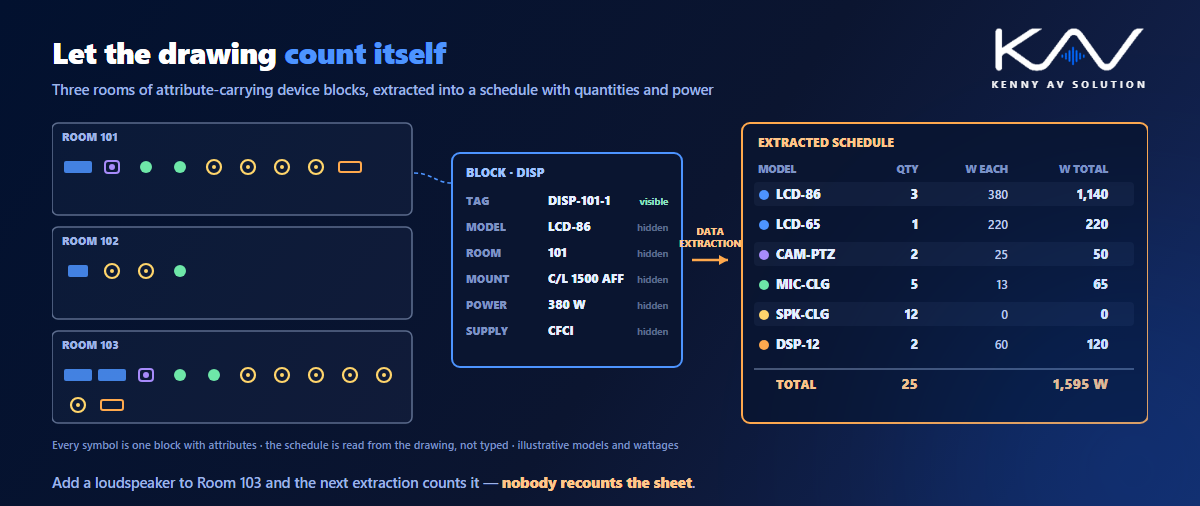
A plain block gives you a consistent shape. A block with attributes gives you a record: each inserted device carries fields such as its tag, model, room, mounting height and power. The tag shown on the plan is one of those fields, not separate text that can drift away from the symbol or be edited without anyone noticing.
That one change turns the plan into a database. The equipment schedule, the device counts and the power totals can all be extracted from the drawing instead of being typed separately, so they agree with the plans by construction — not because someone checked.
Design the attributes once
Decide the attribute set for each block type before the project starts, and keep it the same across every project. A typical device block might carry:
- TAG — the device tag, visible on the plan, using the project’s tag format.
- MODEL — make and model, or a type reference to the equipment schedule.
- ROOM — the room number the device serves.
- MOUNT — mounting height and reference point, matching the wall elevations.
- POWER — power draw in watts, for the power and heat load.
- SUPPLY — who furnishes and installs it, matching the responsibility matrix.
Keep the tag visible and the rest invisible, so the plan stays readable while the data travels with the symbol. Define the attributes with ATTDEF, manage them across a block with the Block Attribute Manager (BATTMAN), and put the set in your drawing standards.
Build a block library, not a block collection
A library is a controlled set: one block per device type, named consistently, drawn on the right layers at a known insertion point, with the standard attribute set. A collection is whatever accumulated from the last ten projects, with three different loudspeaker blocks, none of them matching the legend.
Use dynamic blocks where one device comes in several forms — a visibility state for wall-mounted versus ceiling-mounted, or a flip for left- and right-hand versions — rather than separate blocks that each need maintaining. Make every symbol in the library match the legend on the cover sheet, as described in AV drawing symbols.
Let the drawing count itself
AutoCAD’s Data Extraction (DATAEXTRACTION) reads the attributes of every block in one or more drawings and builds a table: grouped by model, counted, and with numeric fields such as power summed. The table can be placed back on the drawing or exported to a spreadsheet, and it can be updated when the drawing changes. Fields and table formulas let a schedule on the sheet show live totals.
In the illustrative example below, three rooms hold 25 device blocks. Extraction gives the quantity of each model and the power total without anyone counting symbols on the sheet. If a loudspeaker is added to Room 103, the next extraction picks it up.
Where the extracted data goes
- The equipment schedule on the drawings, grouped by model with quantities.
- The rack and room power totals for the electrical and mechanical engineers.
- The cable schedule, where device tags in the schedule must match the blocks; see AV cable schedules.
- The equipment register at closeout, with serial numbers added; see AV closeout documentation.
- Quantity checks for estimating and procurement, straight from the drawings.
The discipline it needs
Attributes only help if they are filled in and kept true. Three habits make the difference. Never explode a device block to edit it — that destroys its data. Never type a tag as loose text next to a block; edit the attribute. And run the extraction before every issue and compare its counts with the schedule on the sheet, as part of the same check that compares the drawings with the specification.
Frequently asked questions
What are block attributes in AutoCAD? Data fields attached to a block, such as a tag, model, room or power rating. Each inserted copy of the block carries its own values, which can be visible on the drawing or hidden, and can be extracted to tables and spreadsheets.
How do you create a schedule from AutoCAD blocks? Use the Data Extraction command (DATAEXTRACTION) to read the attributes of the blocks in one or more drawings, group and count them, sum numeric fields such as power, and place the result as a table on the drawing or export it to a spreadsheet.
What attributes should an AV device block have? Commonly the device tag, the model or type, the room, the mounting height and reference, the power draw, and who furnishes and installs it. Keep the set the same across all blocks and all projects so extractions are consistent.
What is a dynamic block? A block with built-in parameters, such as visibility states or flip actions, so one block can show several versions of a device — for example wall-mounted and ceiling-mounted — instead of maintaining separate blocks for each.
Why should device tags be attributes rather than text? Because an attribute belongs to the block, so it moves, copies and is extracted with the device. A tag typed as separate text can drift away from its symbol, be duplicated or edited without the schedule knowing.
Need AV drawings that count themselves?
Kenny AV Solution drafts AV documentation in AutoCAD for integrators and consultants worldwide — with attribute-driven device blocks, extracted schedules and power totals that match the plans, drawn to your standards and your title block, or set up to match your own block library. See our drafting services, grab the free AV CAD Drafting Standards Checklist, or schedule a quick call — we come back with a quote and timeline within one business day.