
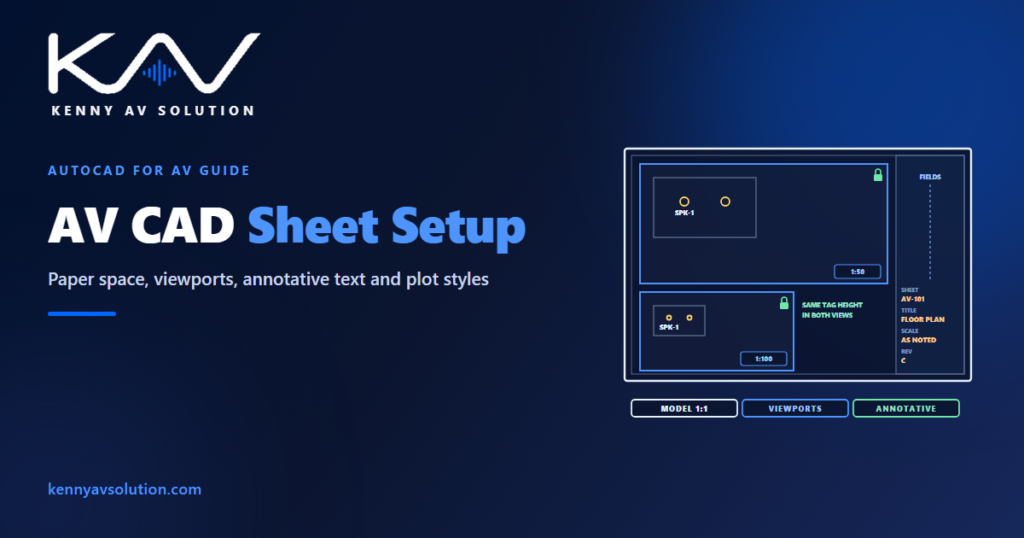
AV CAD sheet setup is the part of drafting nobody notices until it goes wrong. The plan is correct, the devices are tagged, the cables are scheduled — and the issued PDF has tags too small to read on one sheet and huge on the next, lines that all print the same weight, and a title block that says Rev A on a Rev C drawing. None of that is a design problem. It is how the sheets were set up, and it is avoidable with a few habits that every AutoCAD drafter should apply to every set.
The commands below are AutoCAD’s. Where the client issues a CAD standard or template, it governs: use their title block, layers, text styles and plot styles rather than your own.
Draw at full size, plot from layouts
The foundation is simple: draw everything in model space at full size, one drawing unit equal to one real millimetre or inch, and never scale the geometry to fit the sheet. Then compose each sheet on a layout — paper space — with the title block inserted at 1:1 in paper units, and one or more viewports looking into the model at a set scale.
Set each viewport to a standard scale, such as 1:50 or 1/8″ = 1′-0″, and lock its display once it is framed, so nobody zooms inside it and changes the scale by accident. A plan, an enlarged plan and a detail of the same area then come from the same geometry at different scales, and they cannot disagree with each other.
Text that plots the same on every sheet
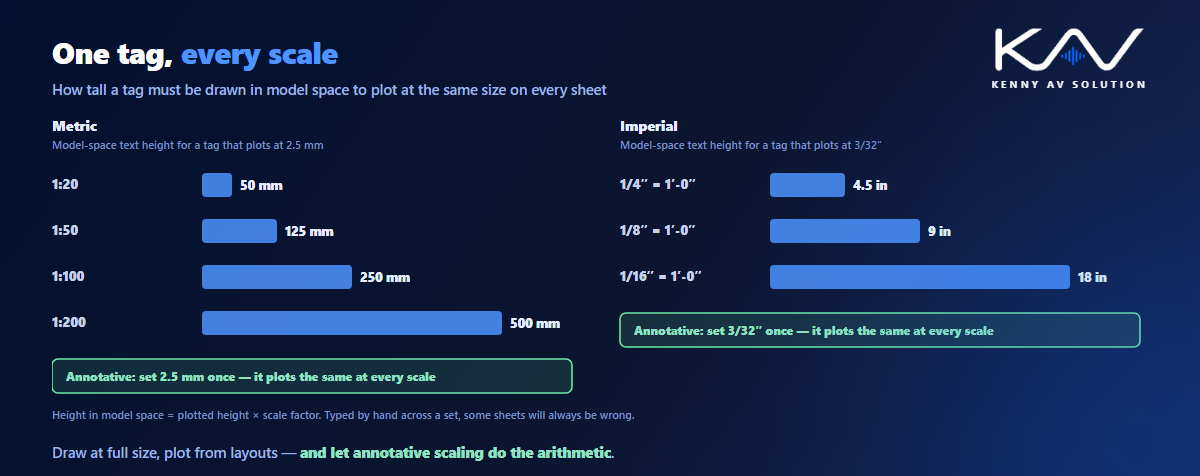
Text drawn in model space has to be drawn at the plotted height multiplied by the scale. For tags that plot at 2.5 mm, that means 125 mm tall text on a 1:50 plan and 250 mm on a 1:100 plan; in imperial units, 3/32″ text is 9″ tall at 1/8″ = 1′-0″. Do that by hand across a set and some sheets will always be wrong.
Annotative text, dimensions and tag blocks solve it. You set the plotted height once, give each object the annotation scales it needs, and AutoCAD displays it at the right size in each viewport. The same device tag reads at the same height on the 1:100 overall plan and the 1:50 enlarged plan. It pairs naturally with the attribute-driven tags described in AV CAD blocks and attributes.
Control what each viewport shows
An AV plan sits on an architectural background, usually attached as an external reference. Not every sheet needs every layer: the ceiling plan does not need the floor boxes, and the floor plan does not need the ceiling grid. Freeze layers per viewport rather than turning them off for the whole drawing, so one model serves the floor plan, the reflected ceiling plan and the enlarged plans without copies; see floor plans versus RCPs. Show the background screened back, so the AV reads first.
Plot styles and line weights
A drawing printed with every line the same weight is hard to read. The plot style decides how each line prints. AutoCAD uses either colour-dependent plot styles (CTB files), where each colour maps to a pen weight and screening, or named plot styles (STB files), assigned by layer or object. Use the one the client’s standard specifies, keep the matching file with the drawings, and set it in the page setup so every sheet plots the same way. AV devices and cables should plot heavier than the background; see AV drawing standards.
Save the plot device, paper size, plot style and scale as a named page setup in the template, and apply it to every layout. Then a sheet plotted by anyone, on any day, looks the same.
Sheet sets keep the title blocks honest
On a set of more than a few sheets, the Sheet Set Manager is worth the setup time. It collects layouts from many drawing files into one ordered set, numbers them, and feeds fields into the title blocks — sheet number, sheet title, project name, and the drawing index on the cover sheet — so they update together instead of being typed on each sheet. It can also publish the whole set to PDF in one pass.
The revision fields matter most. A title block that updates from one place is how the revision on the sheet stays in step with the revision log; see AV drawing revision control.
A sheet setup checklist
- Geometry drawn at full size in model space.
- Each sheet on its own layout with the title block at 1:1.
- Viewports at standard scales, with the display locked.
- Annotative text, dimensions and tags with the correct annotation scales.
- Layers frozen per viewport, not deleted or copied.
- Architectural background attached as a reference and screened back.
- The specified plot style file and a named page setup on every layout.
- Title block fields driven from the sheet set, including the revision.
Run it before every issue, alongside the AV CAD Drafting Standards Checklist.
Frequently asked questions
Should AV drawings be drawn in model space or paper space? The geometry should be drawn in model space at full size. Sheets are then composed in paper space layouts, with the title block at 1:1 and viewports showing the model at standard scales.
What is annotative text in AutoCAD? Text, dimensions or blocks that scale automatically to the annotation scale of each viewport, so they plot at the same height on every sheet regardless of the drawing scale.
How tall should text be in model space? Without annotative scaling, the plotted height multiplied by the scale factor: 2.5 mm text at 1:100 is 250 mm in model space, and 3/32″ text at 1/8″ = 1′-0″ is 9″. Annotative text avoids the calculation.
What is the difference between CTB and STB plot styles? CTB plot styles are colour-dependent: each colour maps to a pen weight and screening. STB plot styles are named and are assigned by layer or object. Use the type the project’s CAD standard specifies.
What does the Sheet Set Manager do? It organises layouts from many drawings into one numbered set, feeds sheet numbers, titles and project data into title blocks through fields, builds the drawing index, and can publish the whole set to PDF at once.
Need AV drawings set up properly?
Kenny AV Solution drafts AV documentation in AutoCAD for integrators and consultants worldwide — full-size model space, annotative tags, locked viewports, your plot styles and sheet sets, drawn to your standards and your title block. Send us your template and the project. See our drafting services, or schedule a quick call — we come back with a quote and timeline within one business day.